Black Friday
--Days
--Hrs
--Min
Claim
Guide

How to create a digital business card, step by step

Making a digital business card takes about ten minutes once you know what goes on it. This guide covers the steps, what to put on the card and what to leave off, how to do it if you mainly use an iPhone, and the checks worth running before you hand it to anyone.

Last updated

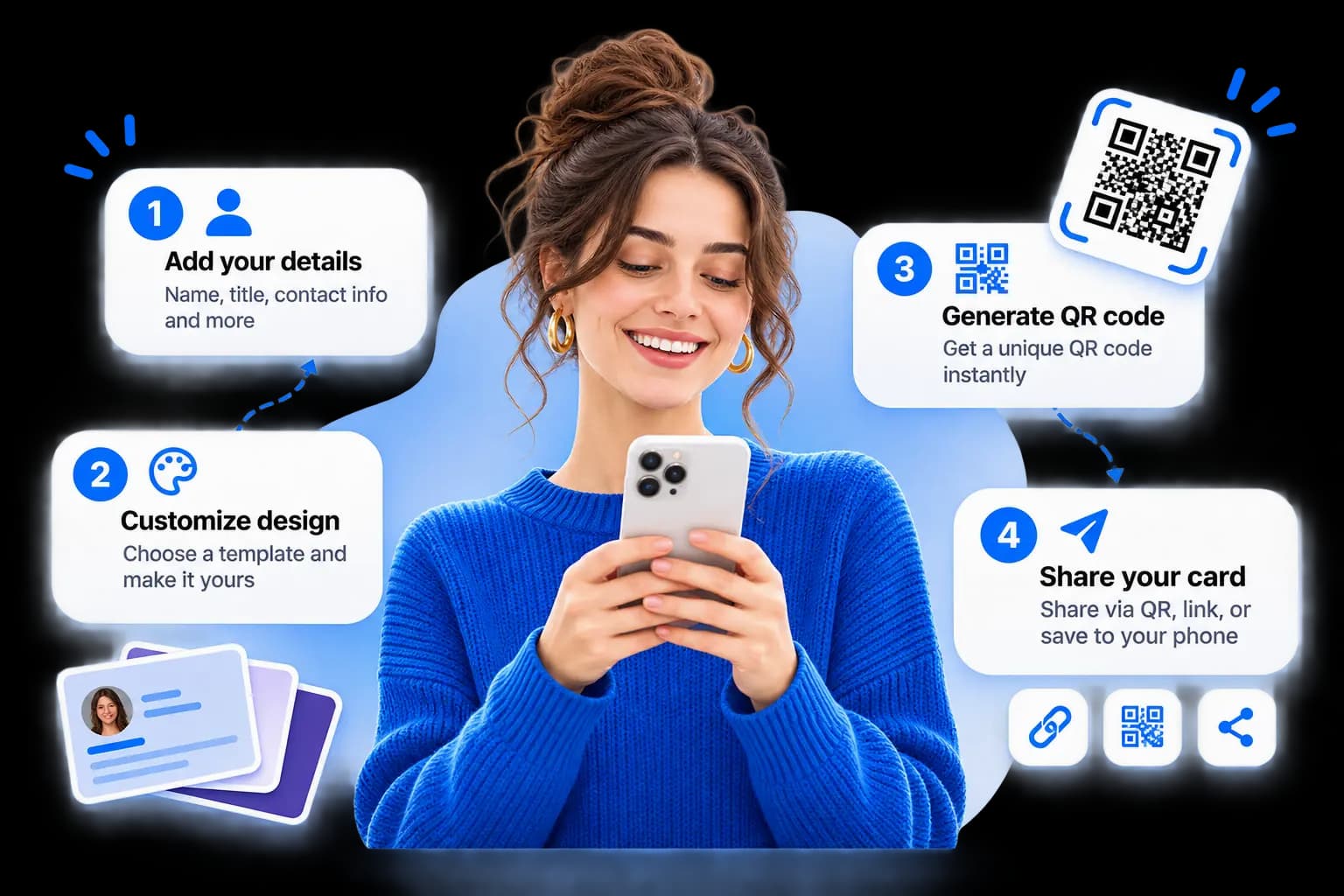
Creating a digital business card step by step on a smartphone

~10 min

to make your first card

6

steps, start to shared

2–5

links is the useful range

$0

for your first card on QRBold

How do you create a digital business card?

Sign up with a digital business card provider, pick a template, and add your name, job title, company, phone, email and two to five useful links. Add a photo or logo, publish, and you get a link and a QR code. Test it by scanning with a real phone and saving the contact before you share it.

What a well-made card gets right

It saves cleanly to contacts

Name, title, company, phone and email land in the right fields of the other person’s address book, so they can find you by company name in six months.

It leads somewhere

Each link is a next step — book a call, message on WhatsApp, see your work — rather than a wall of every profile you have ever made.

It stays correct

The link and QR code do not change when you edit the card, so a code you printed months ago still opens your current details.

It scans first time

A high-contrast QR code with a clear white border, tested on more than one phone, before it goes on anything printed.

Six steps to your first card

1

Create an account

Sign up with email, Google or Microsoft. On QRBold the first card is free and no payment card is asked for.

2

Pick a starter template

Choose a layout close to what you want. Colours, fonts and images can all be changed afterwards.

3

Add your contact details

Full name, job title, company, work phone and work email. These are the fields that end up in the other person’s contacts.

4

Add a photo and your links

A clear, square head-and-shoulders photo, then two to five links: LinkedIn plus whatever someone should do next.

5

Publish and test

Publish to get your link and QR code. Scan it with your own phone, tap Save contact, and check every field landed where it should.

6

Share it

Show the QR code on your screen, paste the link into messages and your email signature, or print the code on a paper card.

What to put on a digital business card

The fields that matter, in the order people use them.

Full nameAs you want it to appear in someone’s contacts
Job title and companyBoth — the company name is how people search their contacts later
Phone and emailWork details; the card is a public web page
Photo or logoSquare, well lit, recognisable at thumbnail size
LinksTwo to five: LinkedIn, booking page, WhatsApp, portfolio or website
Short bioOptional; one or two sentences on what you do and for whom
AddressOnly if people actually visit you
Leave offPersonal mobile, home address, and links you no longer keep up

Before you start: what you need

Having these ready turns a half-hour job into a ten-minute one.

  • A photo. Head and shoulders, plain background, at least twice the size it will appear on screen so it stays sharp.
  • Your logo, if you use one. An SVG, or a PNG with a transparent background, so there is no white box around it.
  • The links you want people to use. Decide what you want someone to do after meeting you, and put that link first.
  • A laptop or desktop. QRBold’s card editor needs a browser window at least 1024 px wide. Once the card is live you share and check it from your phone. See the free card for exactly what is included at no cost.

How to create a digital business card on iPhone

There are two different things people mean by this, and they need different answers.

  • Sharing your contact between iPhones. iPhone already has a contact card: open Contacts, tap My Card at the top, and fill it in. With iOS 17 or later, NameDrop shares it when two iPhones are held close together, and you can always send it with AirDrop or as a contact file in Messages. This only works well when both people use Apple devices and are standing next to each other.
  • A card anyone can open. A digital business card is a web page, so it opens on Android phones, laptops and people you have never met, from a QR code or a link. On QRBold you build it once in a desktop browser, then open the card’s link in Safari on your iPhone and use Share › Add to Home Screen, so it is one tap away when you need to show the QR code.

You can scan, view and share your card entirely from an iPhone. Designing it is the one step that needs a bigger screen — a laptop, a desktop, or an iPad in landscape.

Designing it so people actually use it

Most digital business cards are opened for a few seconds, on a phone, by someone standing in front of you. Design for that moment.

  • Lead with the Save contact button. It is the action that matters most; everything else is secondary.
  • Keep the text short. A one-line headline about what you do beats a paragraph nobody reads at a conference.
  • Use your brand colour once. On the header or the buttons, not everywhere. Low-contrast colour on text makes it hard to read outdoors.
  • Add depth only where it helps. A gallery, video, testimonials or products section is useful for a portfolio or a sales role and noise for most others.

Test before you share

Three checks catch almost every problem people report later.

  • Save the contact on two phones. One iPhone, one Android if you can. Check the job title and company landed in the right fields and the phone number dials.
  • Tap every link. Old LinkedIn URLs and expired booking pages are the most common broken links on a card.
  • Print a proof of the QR code. At actual size, with a white border, and scan it from arm’s length. More on how big to print the QR code.

Then start sharing — the ways to share a digital business card covers which method suits which situation. If you are setting up cards for a team rather than for yourself, employee digital business cards covers templates, branding and offboarding.

Making a digital business card: questions

The questions that come up in real evaluations, answered directly.

Get started

Make yours now

Your first digital business card is free: a link, a QR code and one-tap save to contacts, live in about ten minutes.

Create your free card

No credit card required